

Documentation Index
Fetch the complete documentation index at: https://docs.tryiris.dev/llms.txt
Use this file to discover all available pages before exploring further.
Sign Up
Visit https://app.tryiris.dev to create your account.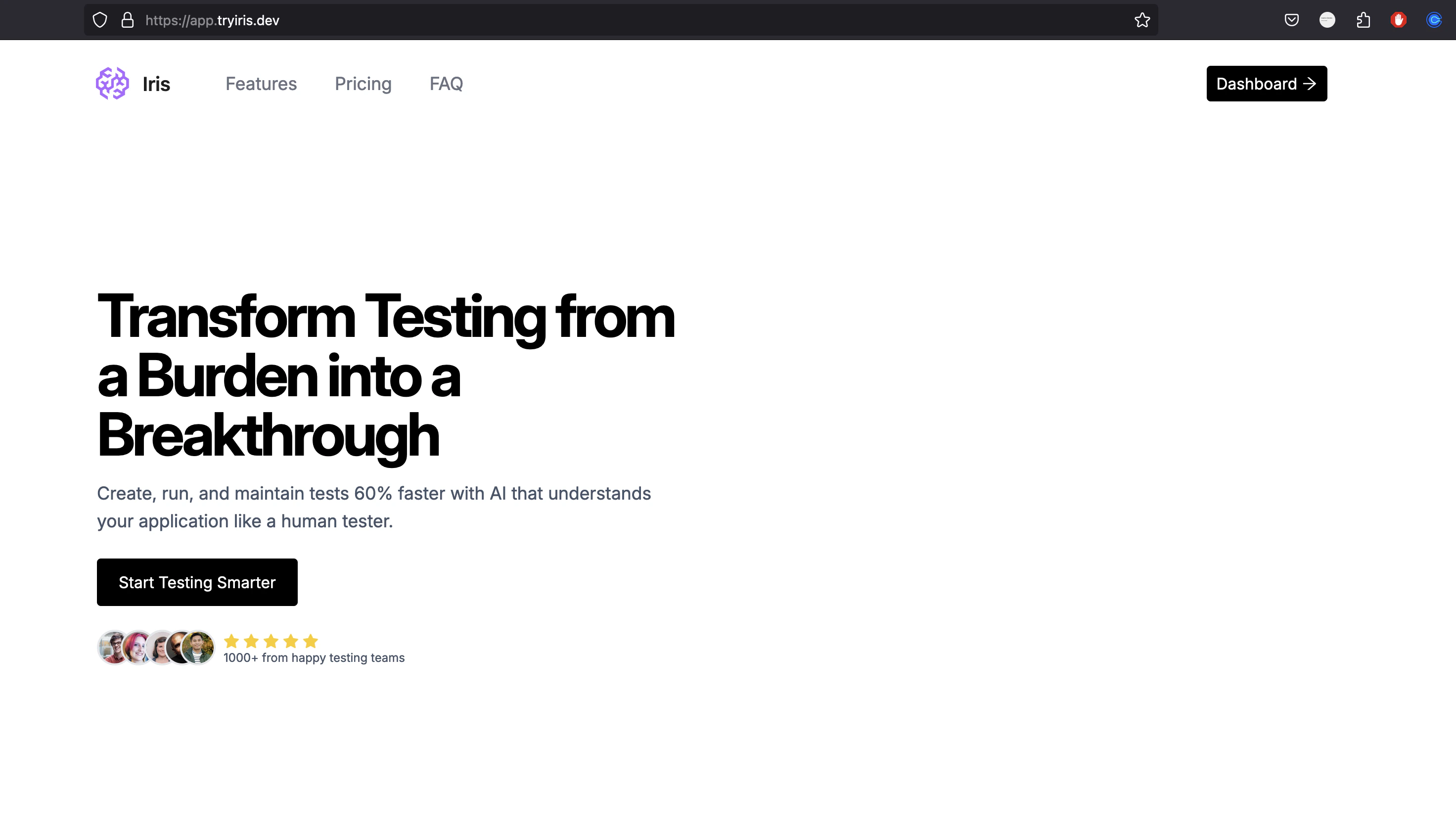
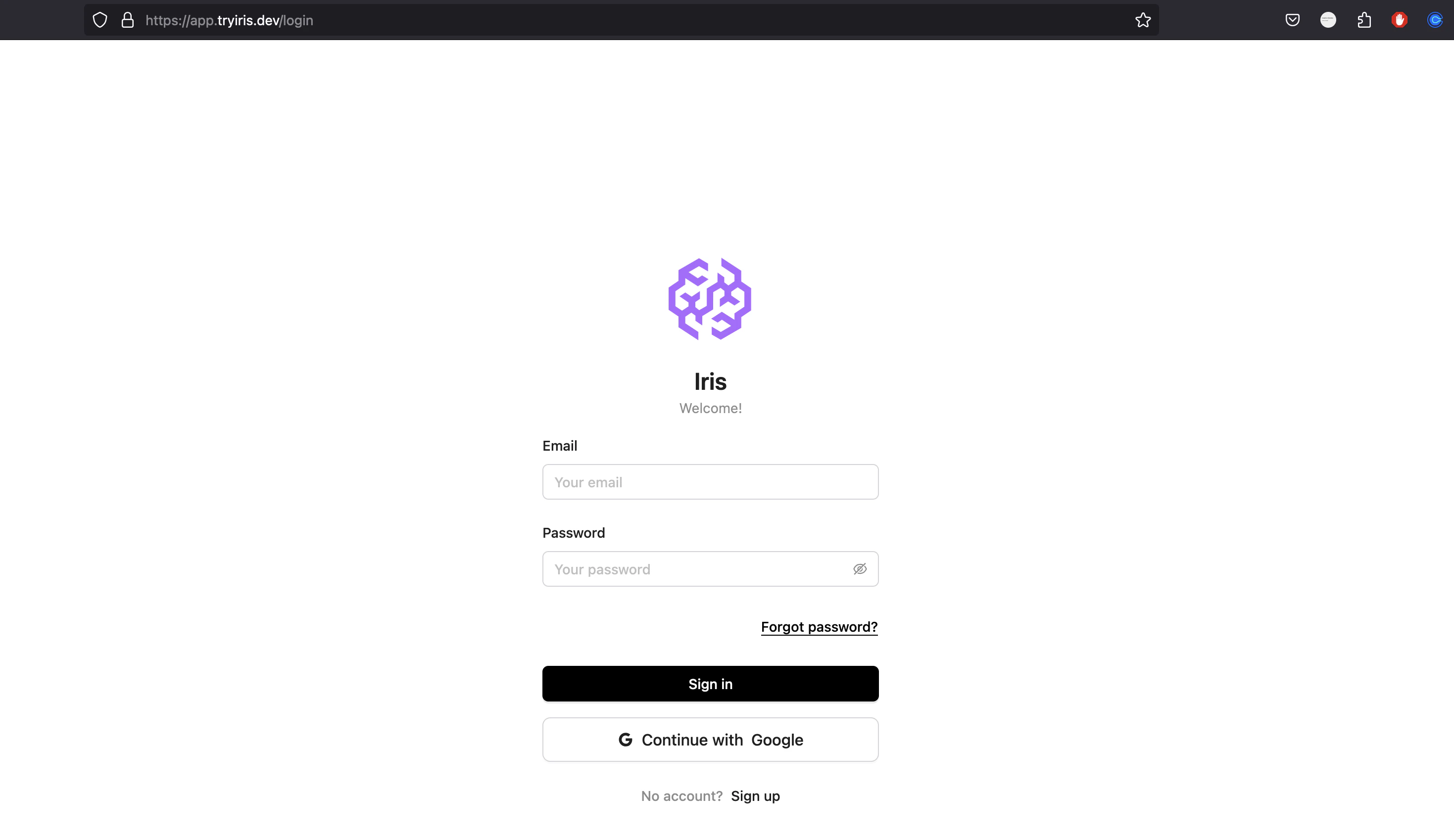
- Click “Login / Register” to create your account
- Sign up using email or continue with Google Sign in
Configure Your First Agent
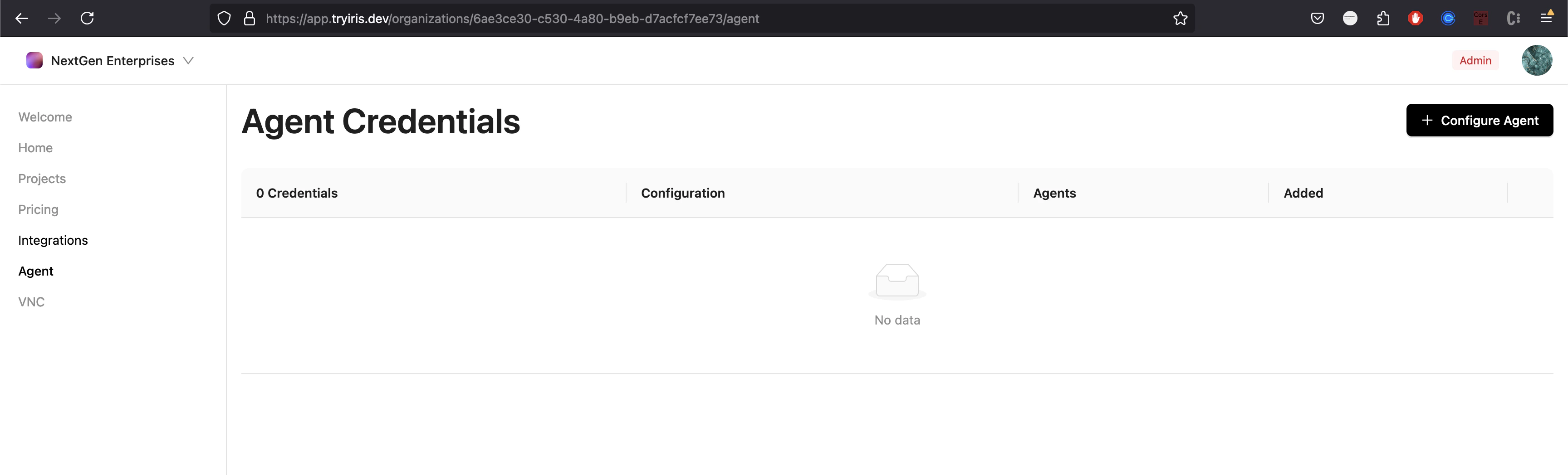
After logging in, you’ll need to set up your default AI agent:- Go to the Agent section
- Click on “Configure Agent”
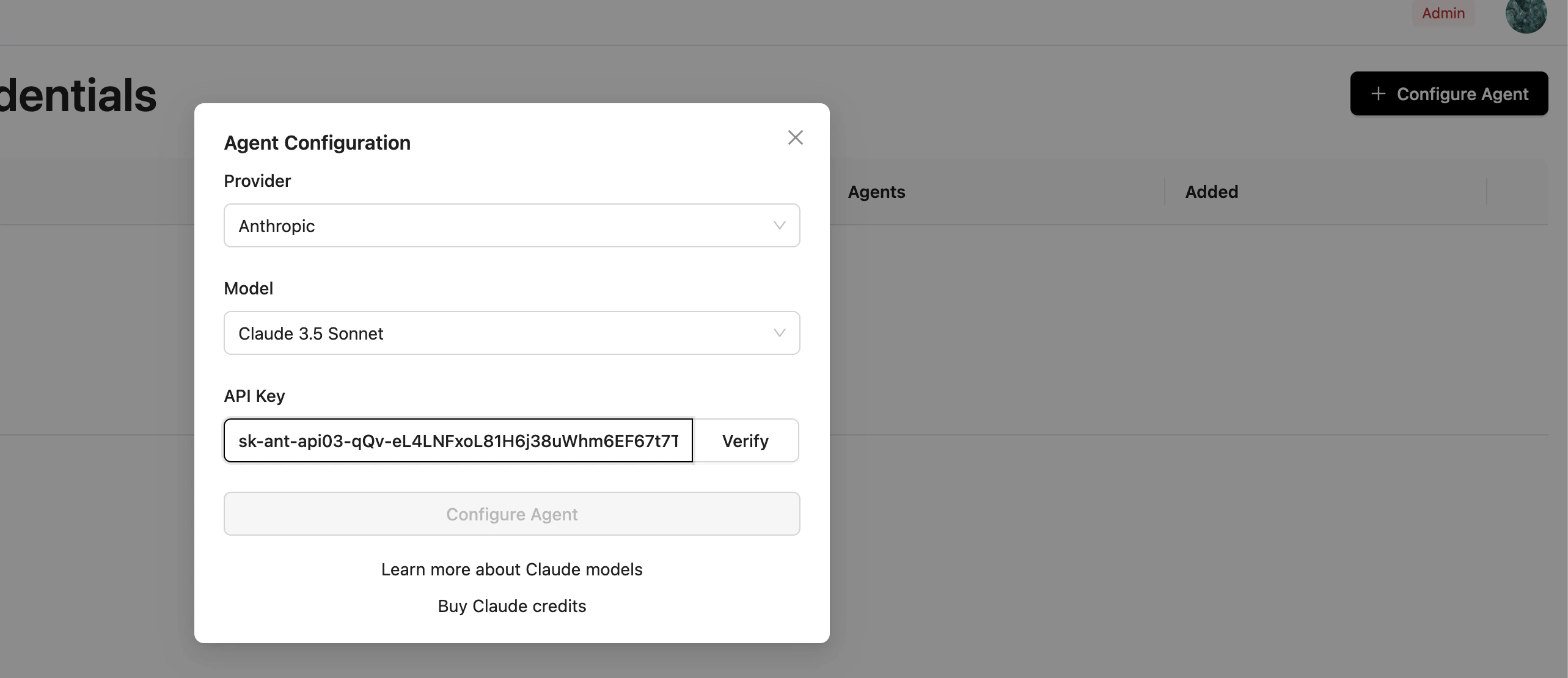
- Select your preferred AI provider
- Enter the required API credentials
- Save your configuration
Create a Project
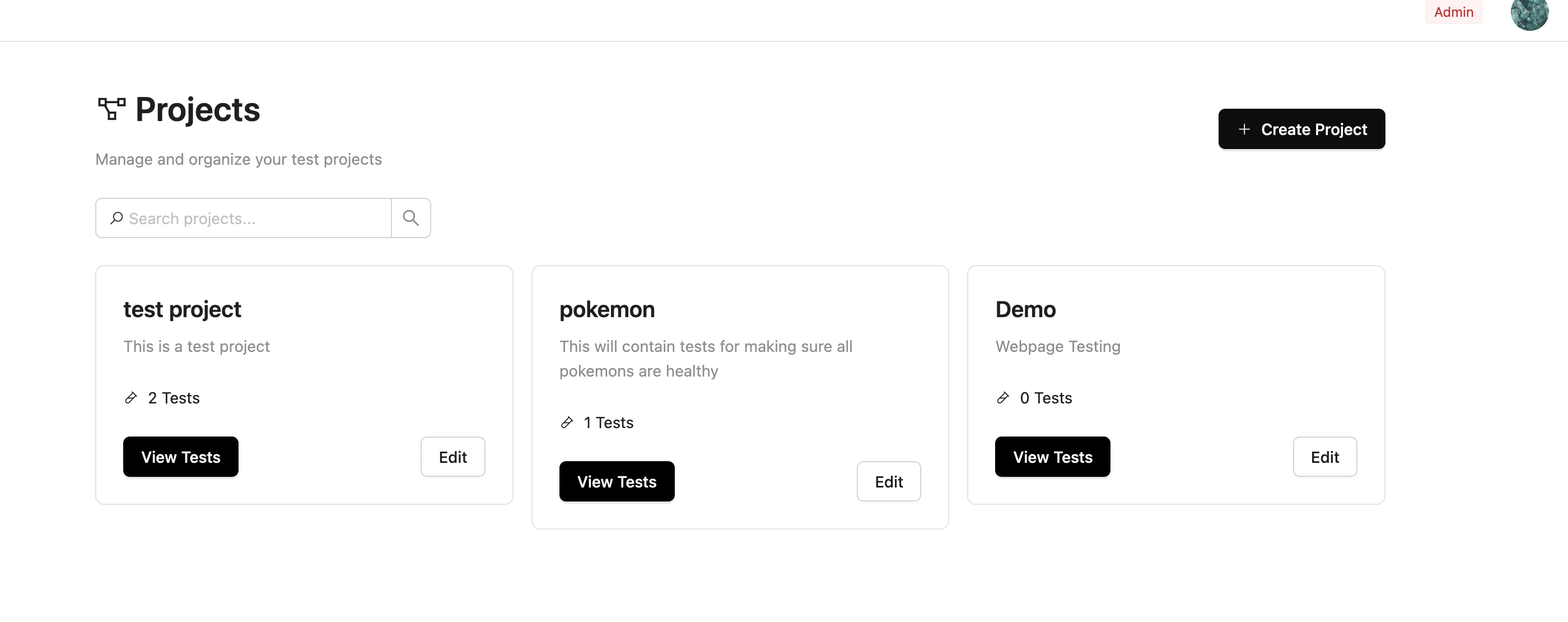
Projects help organize your tests:- Navigate to Projects
- Click on “Create Project”
- Enter a project name and description
- Click on “Create Project” to save
Create Your First Test
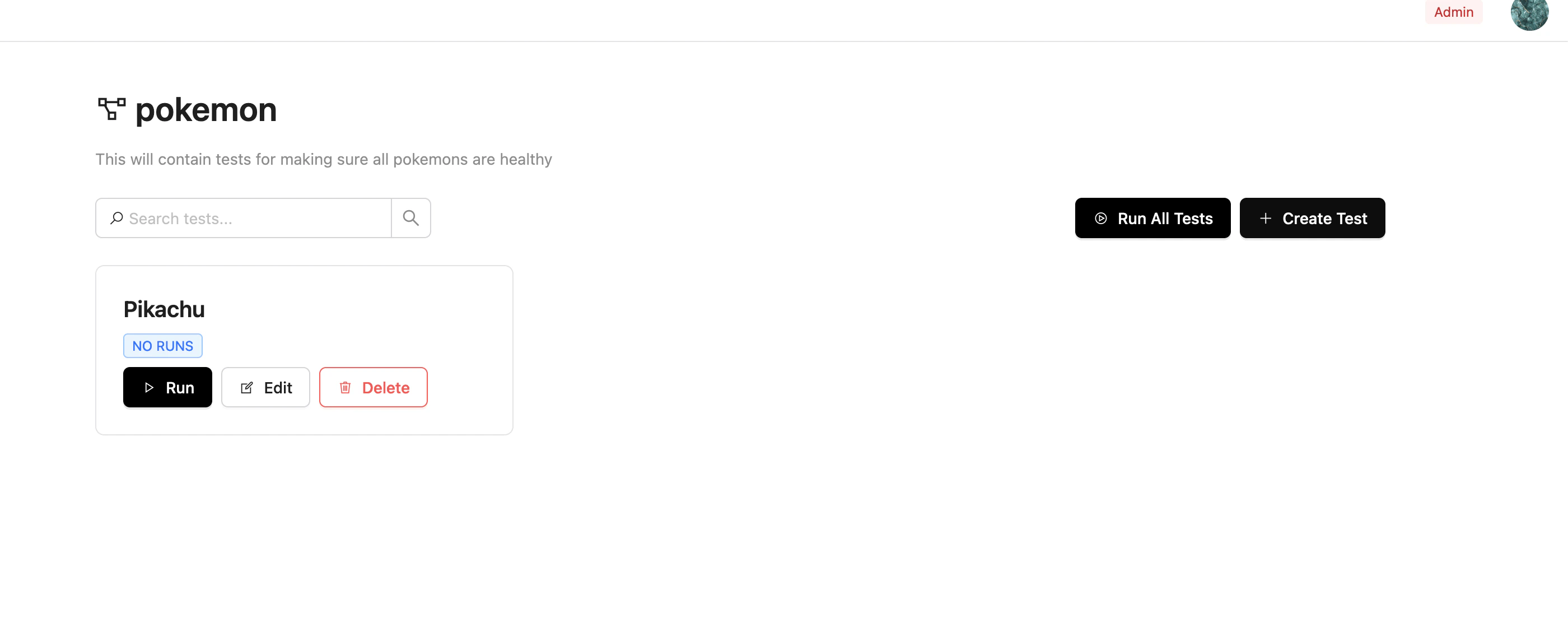
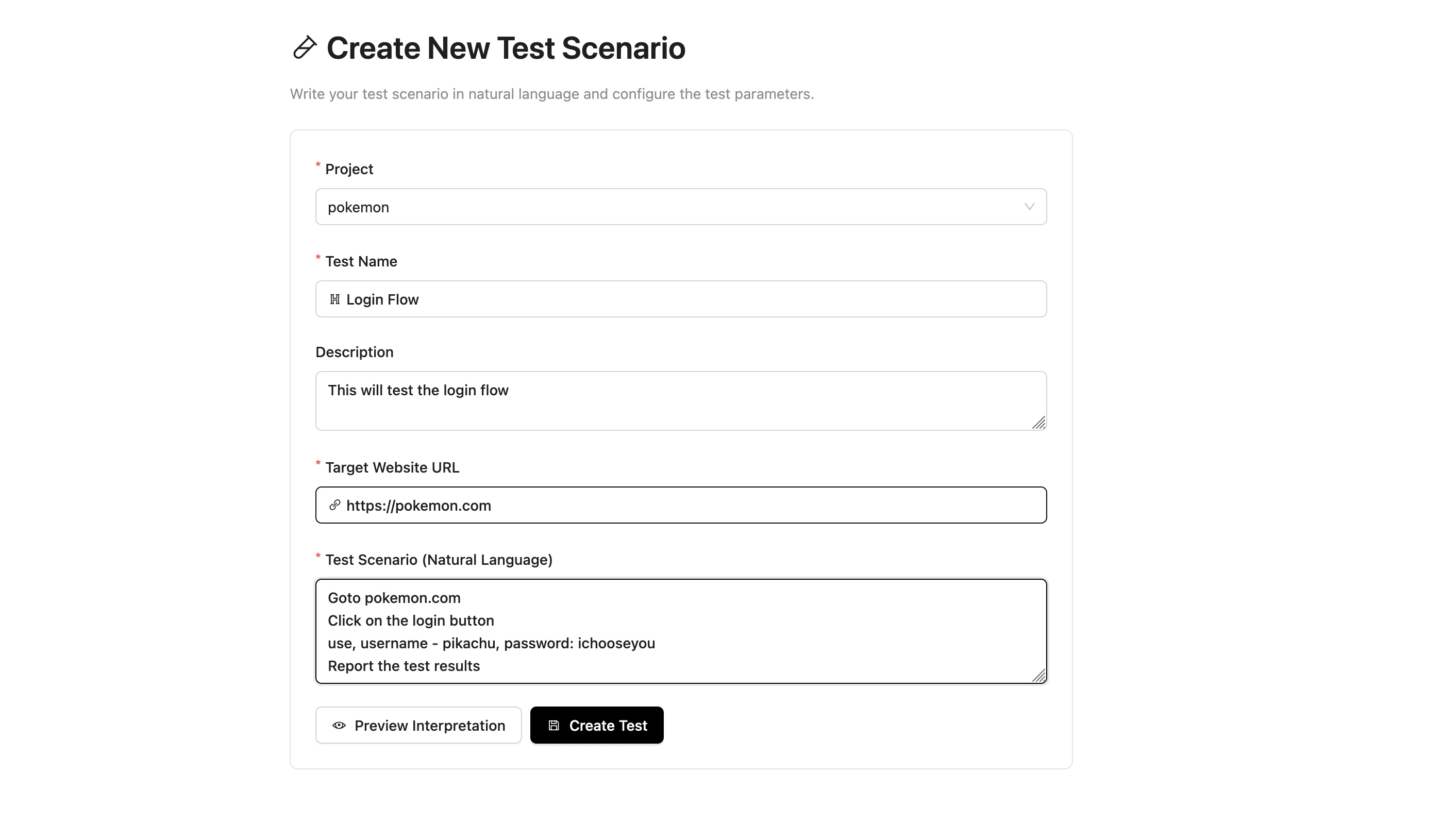
With your project created, you can now add tests:- Click on “Create Test” within your project
- Select the project from the dropdown
- Enter test details (name and description)
- Provide the target website URL
- Describe your test scenario in natural language (e.g. Navigate to google.com and search automated QA testing using Iris)
- Click on “Preview Interpretation” to verify
- Click on “Create Test” to save
Run Tests
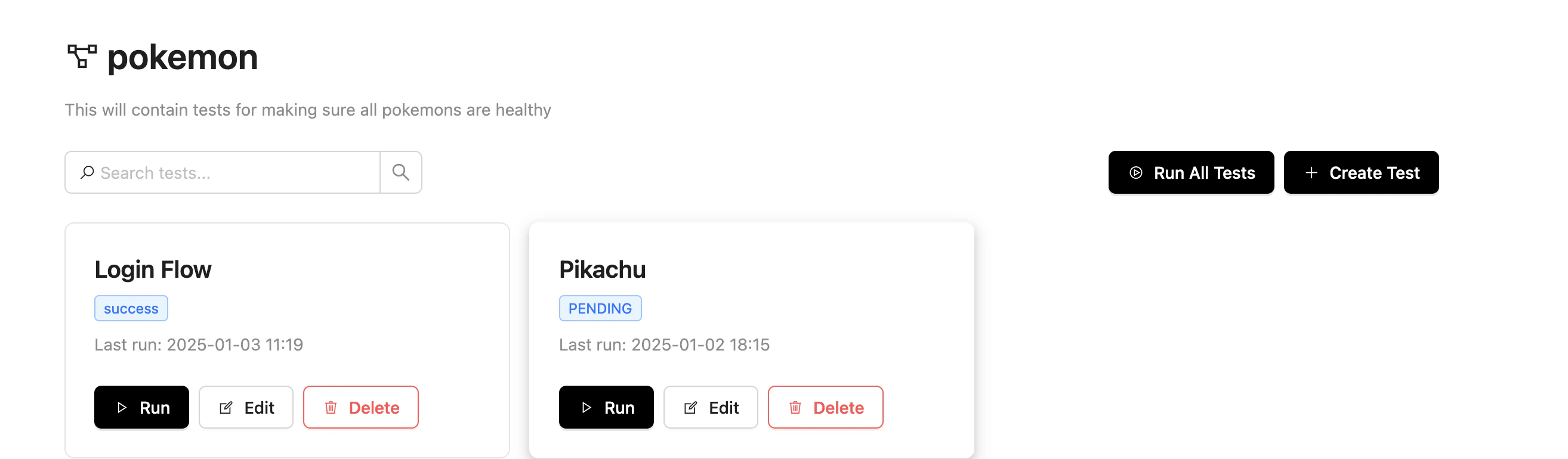
Execute your tests and view results:- From the project dashboard, select individual tests or click on “Run All Tests” to run all tests at once
- The AI agent will execute the tests based on your scenarios
- View real-time progress in the Latest Run section
- Access detailed results in the Test Run Results section
View and Share Results
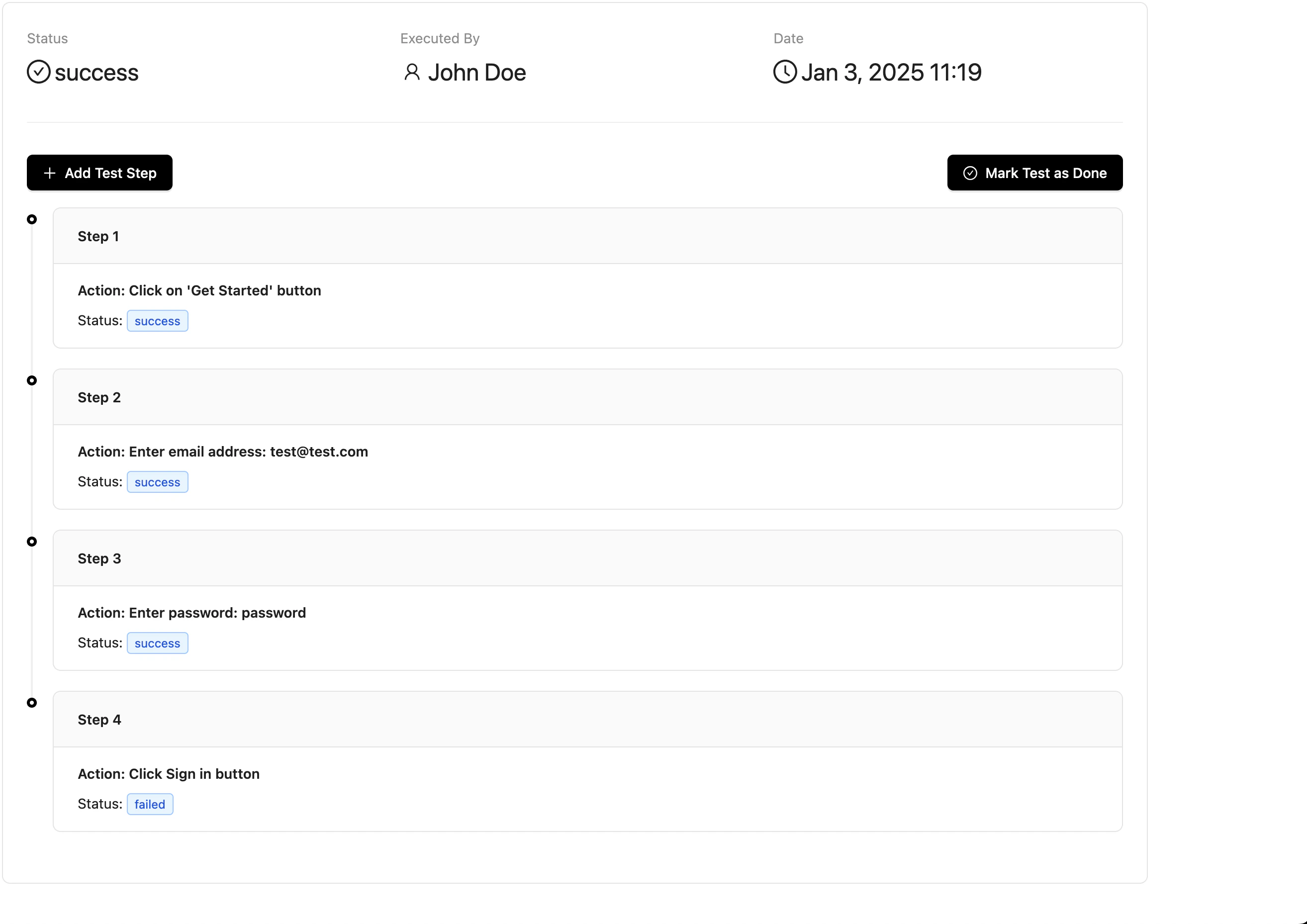
Review and collaborate on test results:- Click on any test run to see detailed steps and outcomes
- Share reports via email with team members
- Access historical test runs for comparison
- Export results as needed
Next Steps
Create Complex Tests
Learn to create more sophisticated test scenarios including browser storage configuration
Configure AI Agents
Set up additional AI agents for different testing needs
Integrate Tools
Connect with your development tools
Team Collaboration
Invite and manage team members